Fix the required fields above to copy.
Live preview
Best,
Fill in your details, copy your signature, then follow the steps below to add it to Gmail.
Make sure you’re using your computer, not your phone. The Gmail phone app has its own plain-text signature setting and can’t show this design.
Fill in your full name, job title and @mode.inc email above. Check the live preview, then click Copy signature. The button changes to “Copied” when it’s on your clipboard.
Use Copy signature, not Copy HTML. Copy HTML is only for people setting up other email apps.
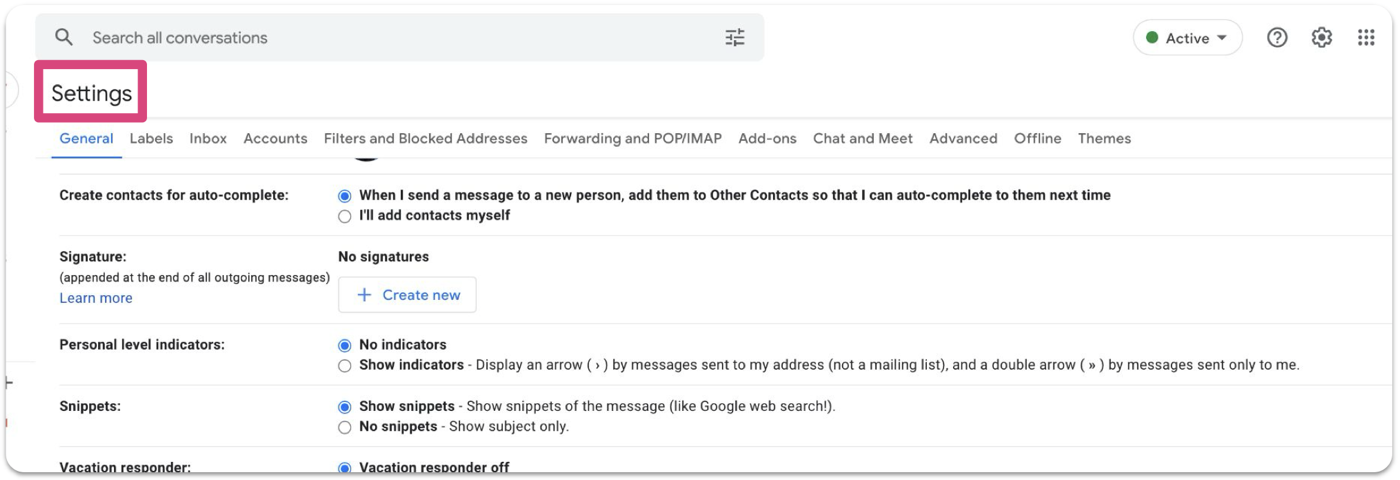
In Gmail, click the gear icon at the top right, then click See all settings.

Stay on the General tab and scroll down until you reach Signature.
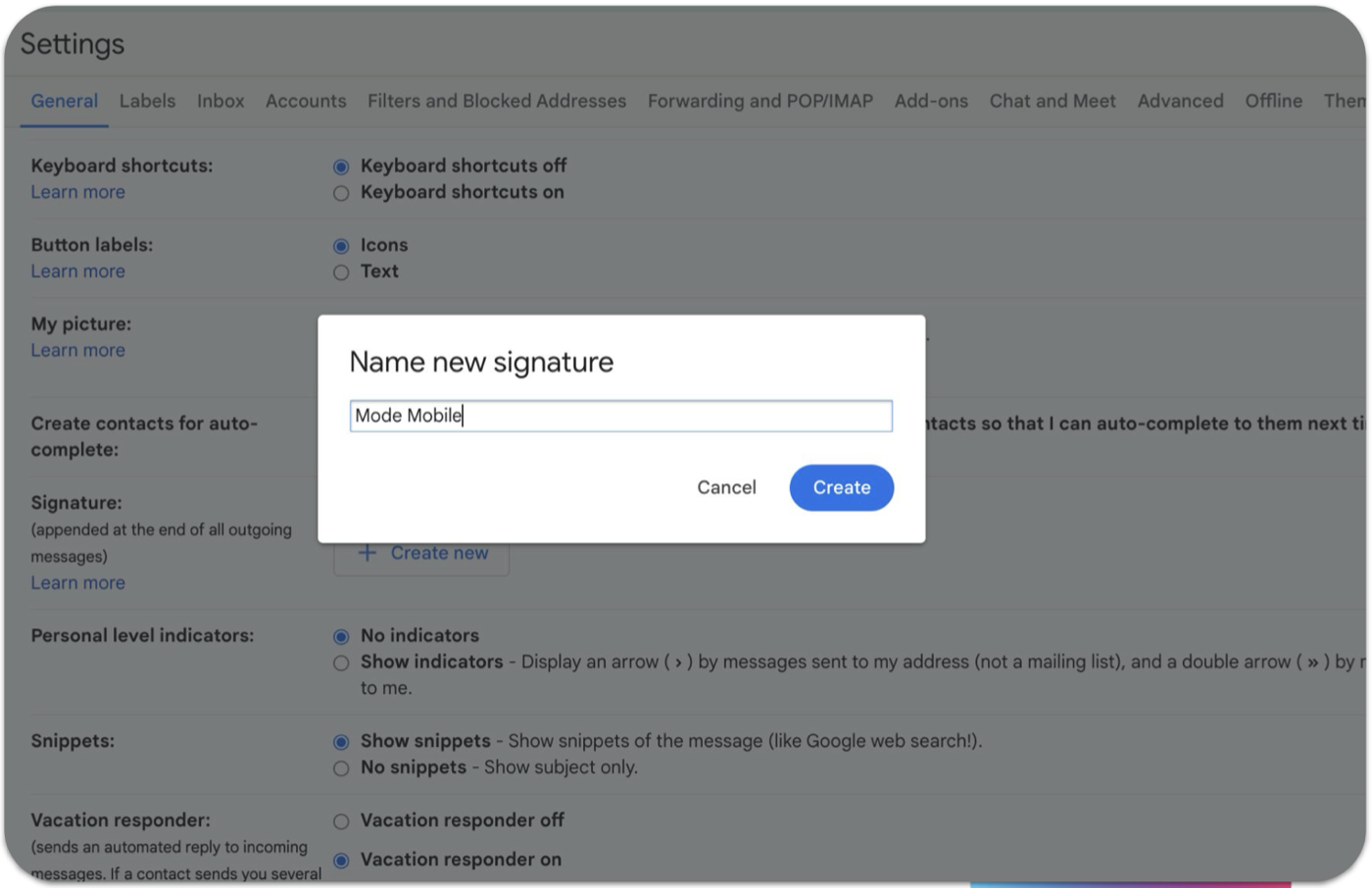
If you already have a Mode signature, delete it with the trash icon next to its name. Then click + Create new, name it Mode.Inc and click Create.
Deleting the old one matters: otherwise Gmail can keep using it as your default.
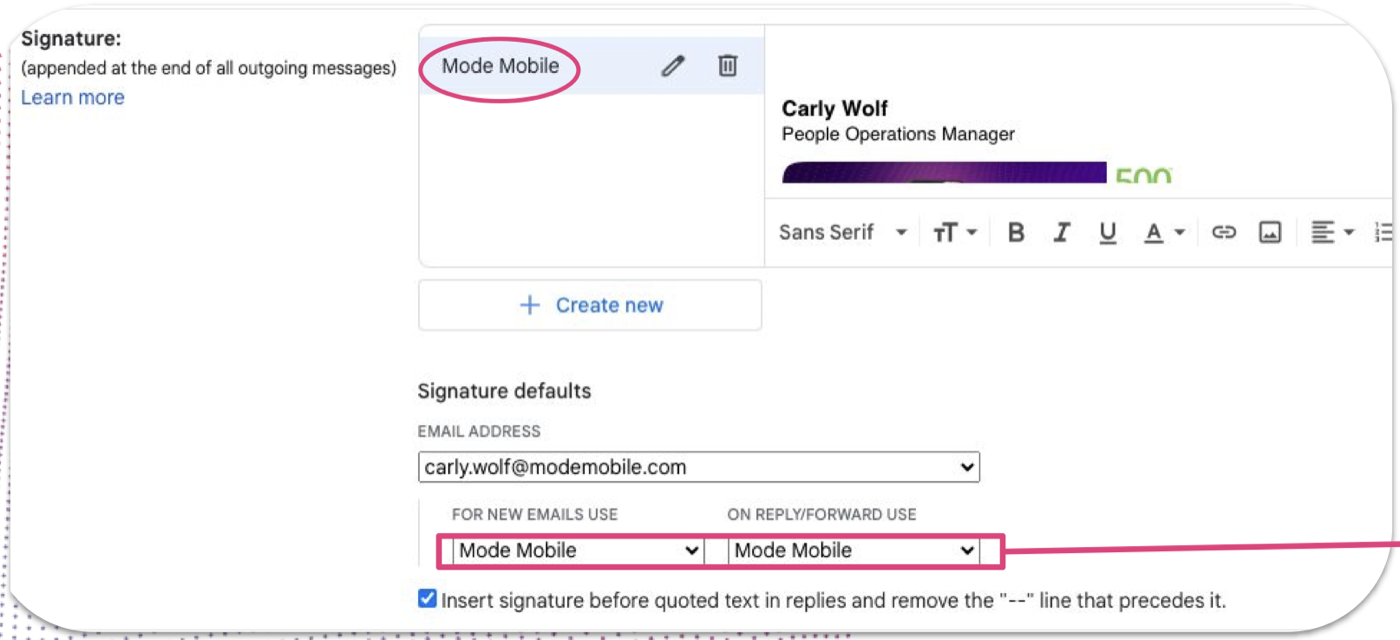
Click inside the empty signature box and paste with ⌘ V on a Mac or Ctrl V on Windows. Your name and title are already in it, so don’t retype anything.
Under Signature defaults, choose Mode.Inc for both For new emails use and On reply/forward use.
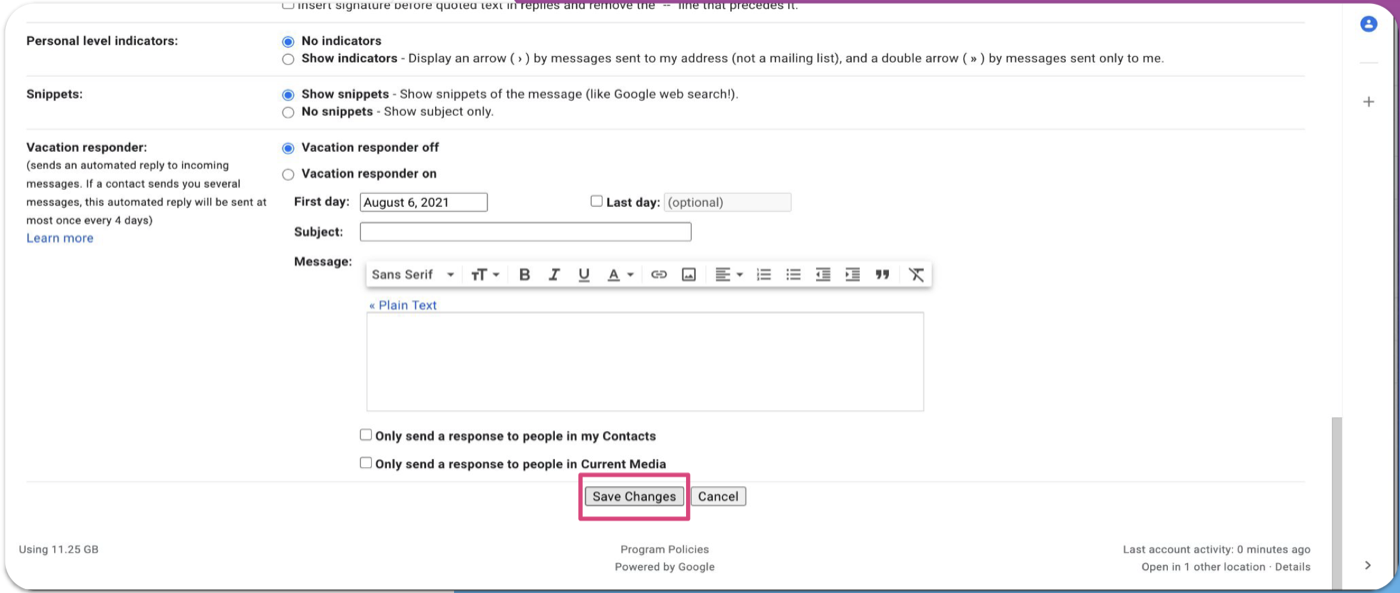
Scroll to the very bottom of the settings page and click Save Changes.
This is the step people miss. If you leave without saving, Gmail throws the new signature away.
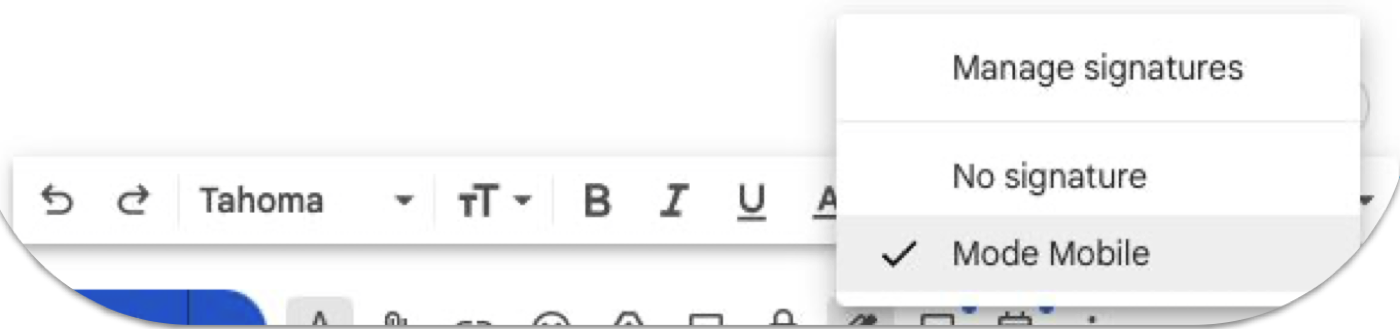
Click Compose. Your signature should appear on its own and match the live preview above. If it doesn’t, click the pen icon in the compose toolbar and pick Mode.Inc. Send the test to yourself to check the logo shows up.
Don’t change the fonts, sizes or colors after pasting, so everyone at Mode.Inc sends the same signature. If your title changes, make a new one on this page and paste it over the old one instead of editing it by hand.
Screenshots are from an earlier rollout, so the signature names and email addresses in them won’t match yours.